
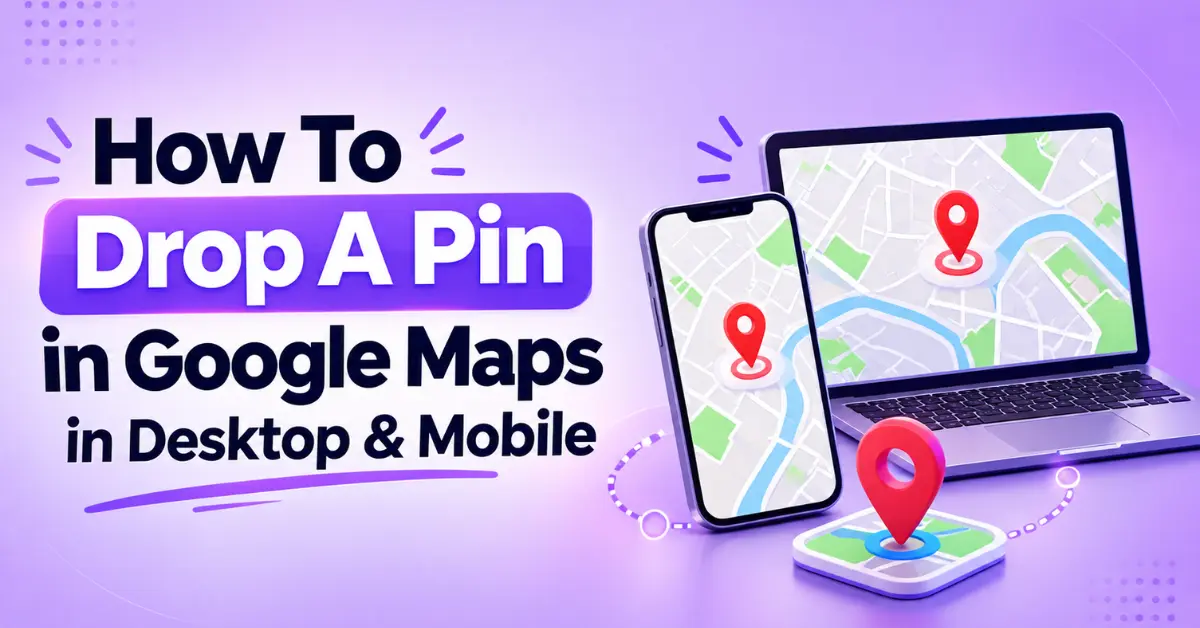
Google Maps is useful when you need to find an address, plan a route or share a location with someone. But what if the place you want to visit or share does not have a proper address or business name?
This is where a dropping pin helps. People search for “How to Drop a Pin on Google Maps Using a Mobile” or desktop when they want to get directions, share a location, save a place, or guide someone to a specific spot.
Understanding the process of dropping a pin on Google Maps on both devices, along with what you can do after placing one.
What is a Dropped Pin on Google Maps?
A dropped pin on Google Maps is a location marker. It means you get the exact address or business of the specific area you are looking for. We can understand this with an easy example:
Suppose that you might want to share your current location with someone, as you do not know the exact address. Once you open the map, you will get the details and options to share, save and more.
How To Drop a Pin on Google Maps Using a Desktop
If you are using Google Maps on a laptop or desktop, you can place a pin with a single click. You can first search for a general area or move around the map manually.
Here is How To Drop A Pin in Google Maps in Desktop:
Step 1: Open Google Maps
Open Google Maps in your web browser. Now a Map will show up on your screen.
Step 2: Find the Exact Location
Move around the map using your mouse or trackpad. Zoom in using the plus and minus controls or your mouse wheel.
Step 3: Click the Location
Click directly on the point where you want to place the pin. In the top-left corner, there is a search option with an arrow -type icon; click on that. Select the option “Your Location”. Allow access to get your location.
Step 4: Check the Pin
Look closely at the location to make sure you selected the correct point. If it is slightly off, click another point on the map.
Step 5: Share or Save It
After placing the pin, you can use the available options to share the location or save it for future use.
How To Drop a Pin on Google Maps Using a Mobile Phone
On a smartphone, you can drop a pin directly from the Google Maps app. You can search for an area first or move around the map until you find the required spot.
If you are looking for How To Drop A Pin in Google Maps in Mobile, follow these steps.
Step 1: Launch Google Maps
Launch the Google Maps application on your Android smartphone or iPhone. Allow the map to fully load and then choose your location.
Step 2: Locate an Area
Search the general area you want by typing the area name into the search field, or by moving the map around with your finger. You do not have to know the address of the place where you want to put the pin.
Step 3: Pin Down a Place
Press and hold your finger on the spot where you want to place the pin. A red pin appears in the chosen spot, along with a window that provides information about the location.
Step 4: View Details of Your Choice
View the information below the map. The address, latitude and longitude, nearby points of interest, and other actions will be provided to you below the map.
If the red pin is in the wrong spot, move the map and reselect the area.
Step 5: Share or Save the Pin
Share the location with someone else, or save it to your map lists. You might find this useful if you want to find that place again.
Desktop vs Mobile: How Does Dropping a Pin Differ?
The basic process is the same, but the controls are different depending on the device.
Feature | Desktop | Mobile |
Open Google Maps | Web browser | Google Maps app |
Select a location | Click the map | Press and hold |
Move around | Mouse or trackpad | Touch gestures |
Zoom | Mouse wheel or map controls | Pinch with two fingers |
Share location | Available | Available |
Save location | Available | Available |
Useful for | Detailed map browsing | Quick location sharing |
What Will You Do After Dropping a Pin?
Dropping a pin does more than mark a point on the map. Once the location is selected, Google Maps gives you several ways to use it.
1. Get Directions
The dropped location can be used as the destination, and directions can be obtained based on your current location or any other starting point.
This is especially useful if there are no addresses at the selected destination point.
2. Share Location
Location can be shared by using a link. When the recipient opens the link, he/she will be able to view the selected location on Google Maps.
It might be easier to send a link to an exact location rather than describing where to meet.
3. Save the Location
In case the selected place will be visited in the future, the location can be saved to a Google Maps list. Such locations include personal places, future travels, meeting points or just some places that need to be remembered.
4. Check Coordinates
Latitude and longitude coordinates can also be obtained for the selected location. This information is very helpful if the standard address cannot be found.
When Should You Drop a Pin on Google Maps?
A dropped pin is useful whenever a standard search does not identify the exact spot you need. Some common situations include:
1) Meeting Locations: Provide a specific location where a general address applies to a larger area, causing confusion for the person coming to the address.
2) Unlabeled Locations: Label sites such as open fields, trails, parking lots, or sites without any known addresses on the streets.
3) Site Locations: Specify a certain building, entrance, parcel, or site where neighboring addresses can appear to be alike.
4) Outdoor Sites: Provide viewpoints, picnic sites, hiking sites, or other sites that do not have official addresses.
5) Delivery Locations: Guide a person to a certain entrance if the address provided is vague and unclear.
How To Share a Dropped Pin With Someone?
After identifying your destination, click on Share in Google Maps. The user can copy the link to the place and can send it via a messaging app, e-mail, or any other form of communication tool.
For instance, when you are meeting a friend outside a big shopping mall, sharing the pin to the right entrance of the shopping mall is better than sharing the overall address of the mall.
The person receiving the link can access it and can navigate using Google Maps.
Can You Drop a Pin Without Knowing the Address?
Yes. There is no requirement to know the exact address before putting the pin on it.
Using a desktop, you can choose the desired point by simply clicking on the map. On mobile, just tap and hold on the desired location. Google Maps will detect the chosen point and show you the available information about it.
It makes pins really useful in areas that cannot be easily described using a conventional address.
Common Problems When Dropping a Pin
Here are a few:-
1) Sometimes, Google Maps might show the location of an address near where you have marked your location.
2) Another problem that might occur when using Google Maps is pin placement that is too close to roads or buildings.
3) If the other person is not able to find the pin location you send them, then check the shared link yourself to see if it is properly marked.
Conclusion
Dropping a pin is a simple way to mark a precise location when a regular address or place search is not enough. The desktop version lets you select a point with a click, while the mobile app lets you press and hold the map.
Once the pin is placed, you can share it, save it, get directions, or use the available location details. For better accuracy, zoom in and check nearby landmarks before sharing the location.
Frequently Asked Questions
Yes. You can manually select a location on the map even when it does not have a recognised street address or business listing.
Select the location, choose the Share option, and copy the available link. You can then send it through your preferred communication app.
Yes. You can use the Save option to add a selected location to one of your Google Maps lists for future reference.
Yes. Open the Google Maps app, find the required area, and press and hold the exact point where you want to place the pin.
Yes. Depending on the selected location and device, Google Maps may display latitude and longitude coordinates for the point you selected.






Leave a Reply